Impact
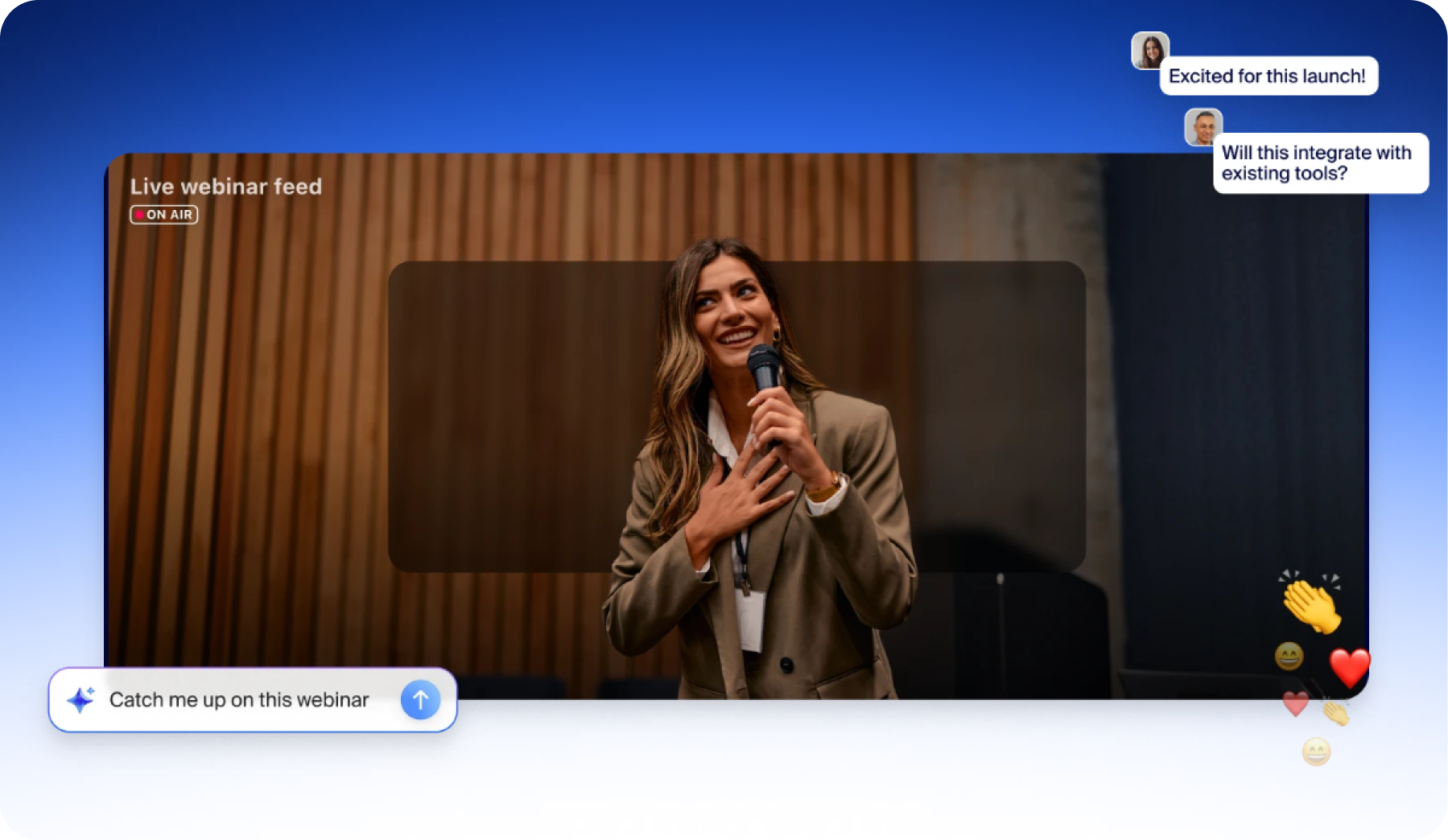
AI support for webinars transforms large-scale events from passive broadcasts into interactive experiences. Participants can ask real-time questions such as: requesting summaries, simpler explanations, or recaps, to stay oriented without interrupting the speaker. This AI-powered feature also enables post-event summaries that hosts can securely share with selected participants.
Introduction
Zoom Webinar is a, view-only, large-scale virtual event platform designed for broadcasting to audiences ranging from 500 up to 1 million.
Problem
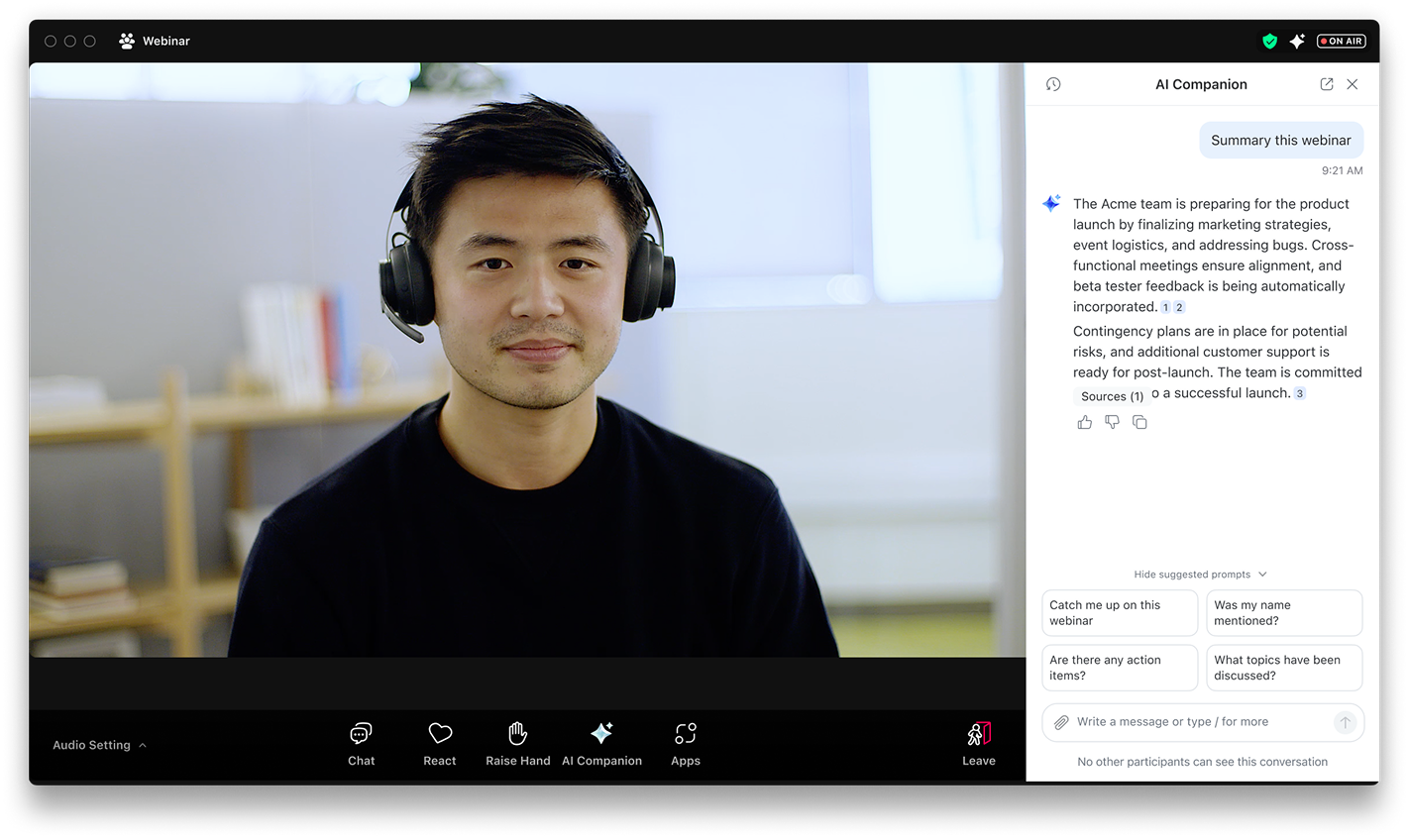
How many of us have needed to join a webinar late due to busy scheduling, miss a portion or realize you’re no longer following the content being shared? With AI features, Zoom can solve these common issues with:
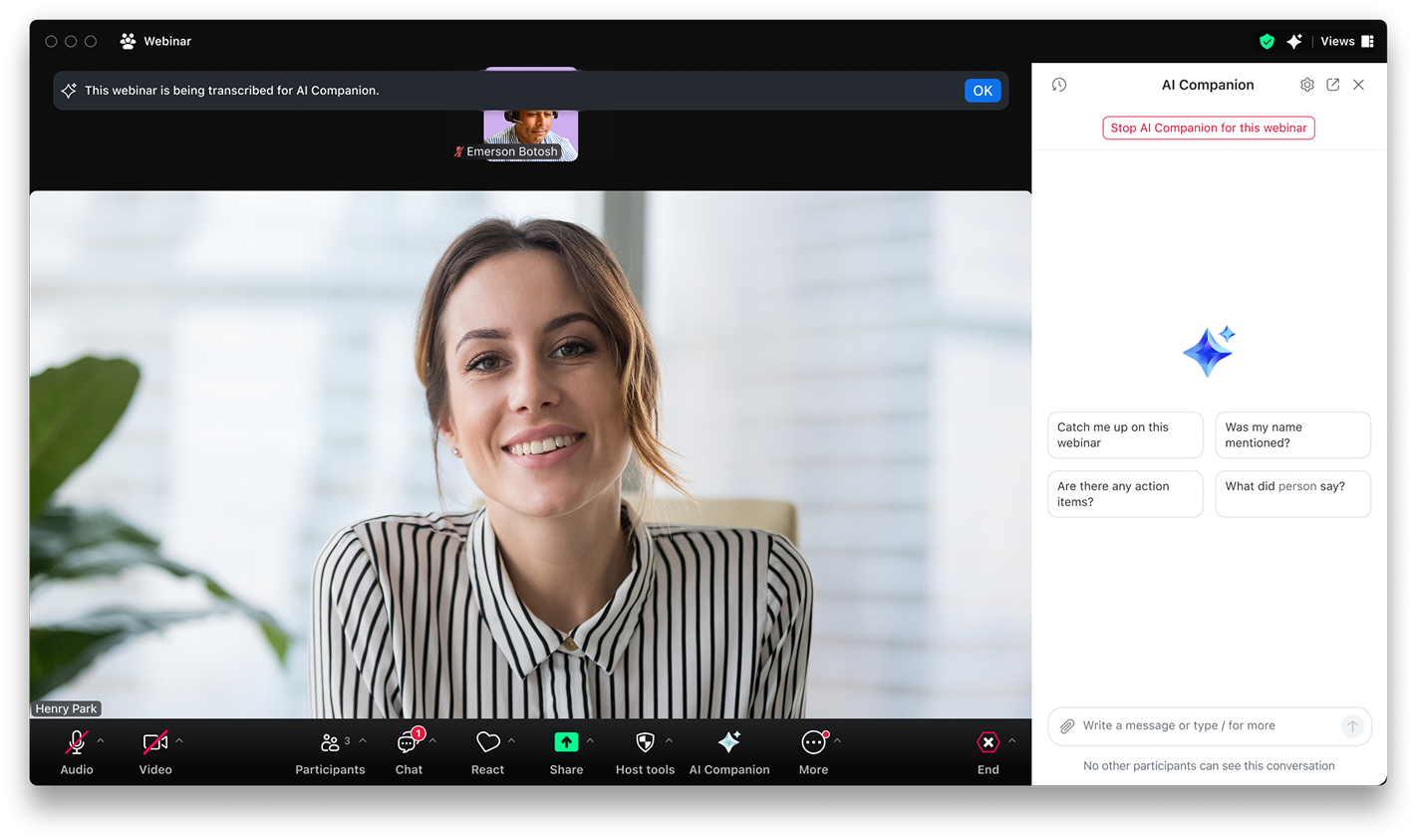
- Ability to ask Zoom’s AI Companion questions during the webinar
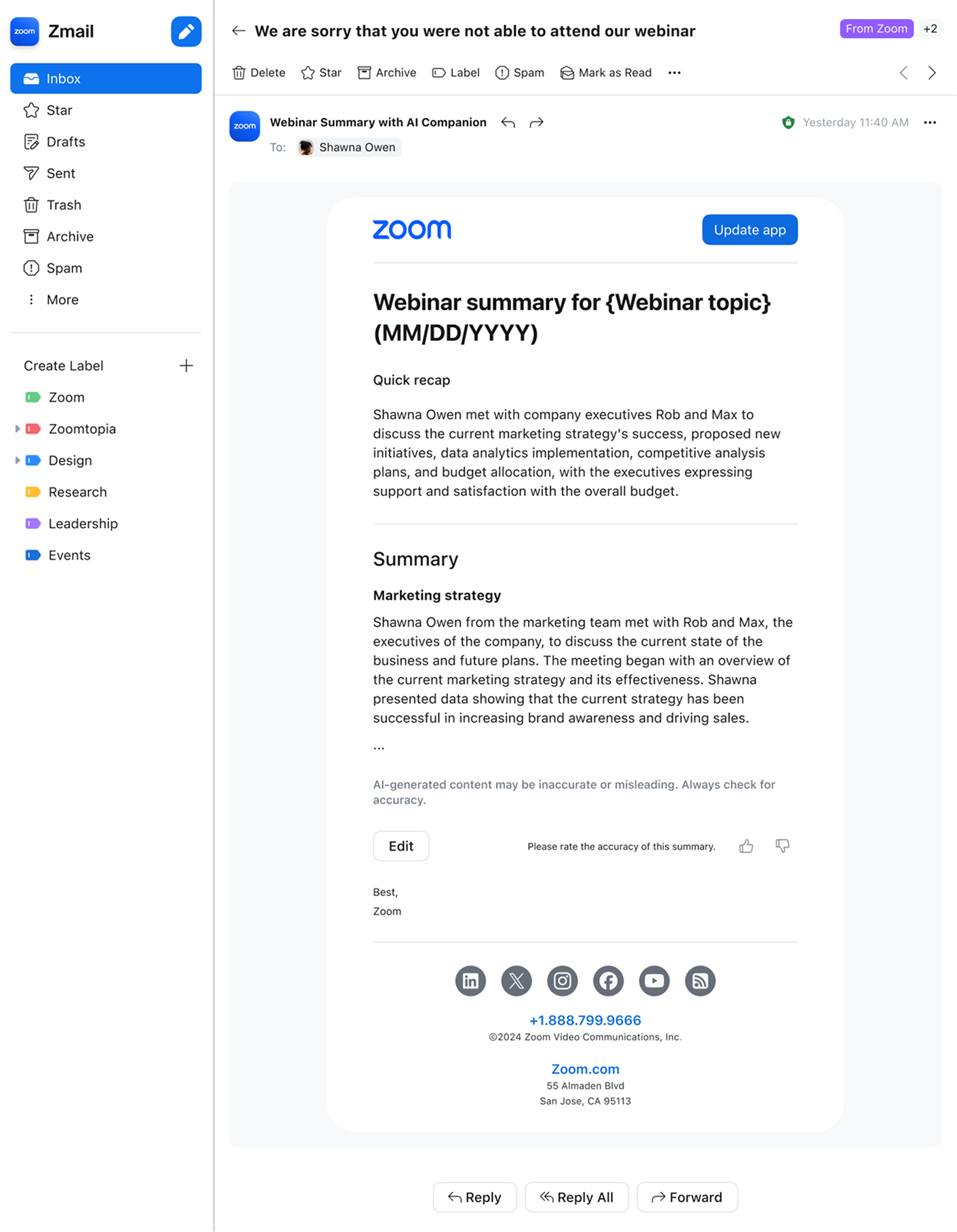
- Ability to share a summary of the webinar post-webinar
Goal
To bring over Zoom Meeting’s AI Companion (AIC) and Summaries into the events and webinar space, providing design flows for the added complexity both an event or webinar may have.
- AIC allows users to ask questions during the webinar
- Summaries allows the host to share a summary of the webinar itself. This is generated based on the transcript.
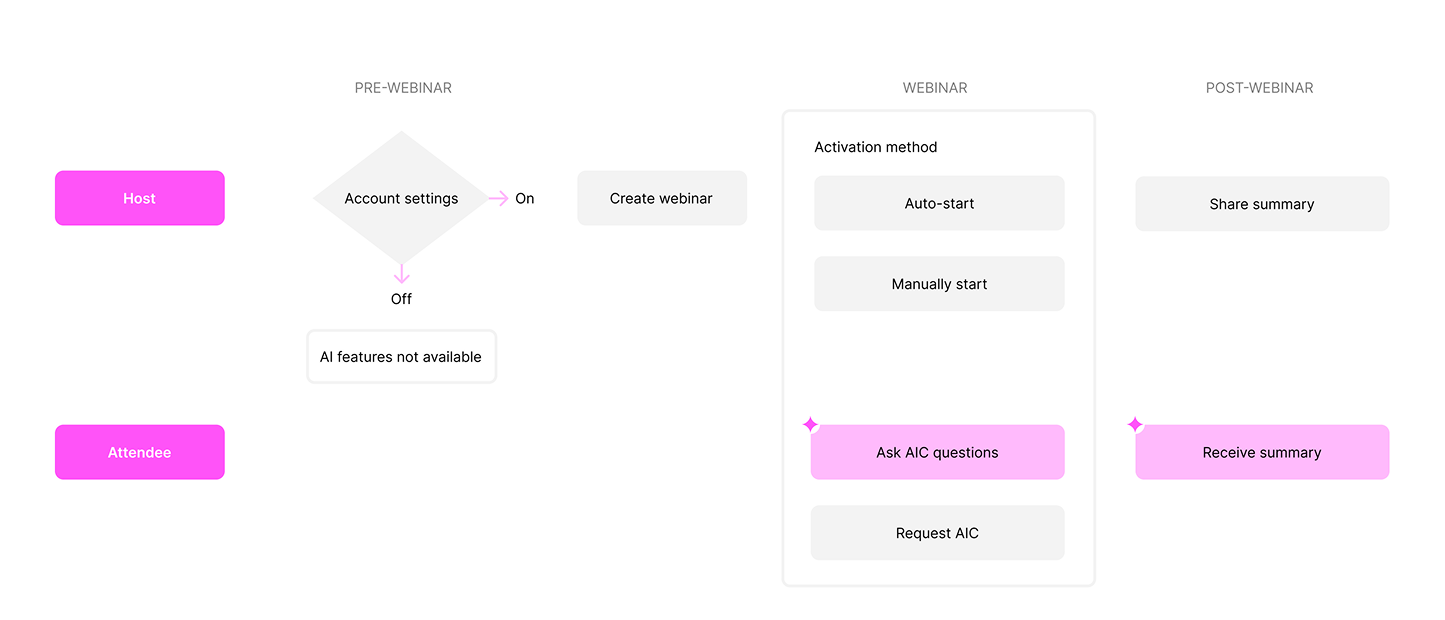
You can visualize a more generalized & simplistic flow here:
My role
- Evaluated existing AI meeting flows
- Defined webinar-specific experiences while ensuring alignment with evolving meeting patterns (during leadership reviews)
- Shared requirements to distribute design ownership across the team
- Presented design results to leadership across design and product
Meetings vs Webinars
There were core differences between Meetings and Webinars that required design and flow changes.Meetings
- Host up to 10,000 attendees
- Roles: host, co-host, participants
- Scene: Meeting
Webinars
- Host up to 1 million attendees and 1,000 panelists
- Roles: host, co-host, panelists, attendee, absentee
- Scene: Practice room / Backstage / Webinar
- Higher concerns for privacy & security
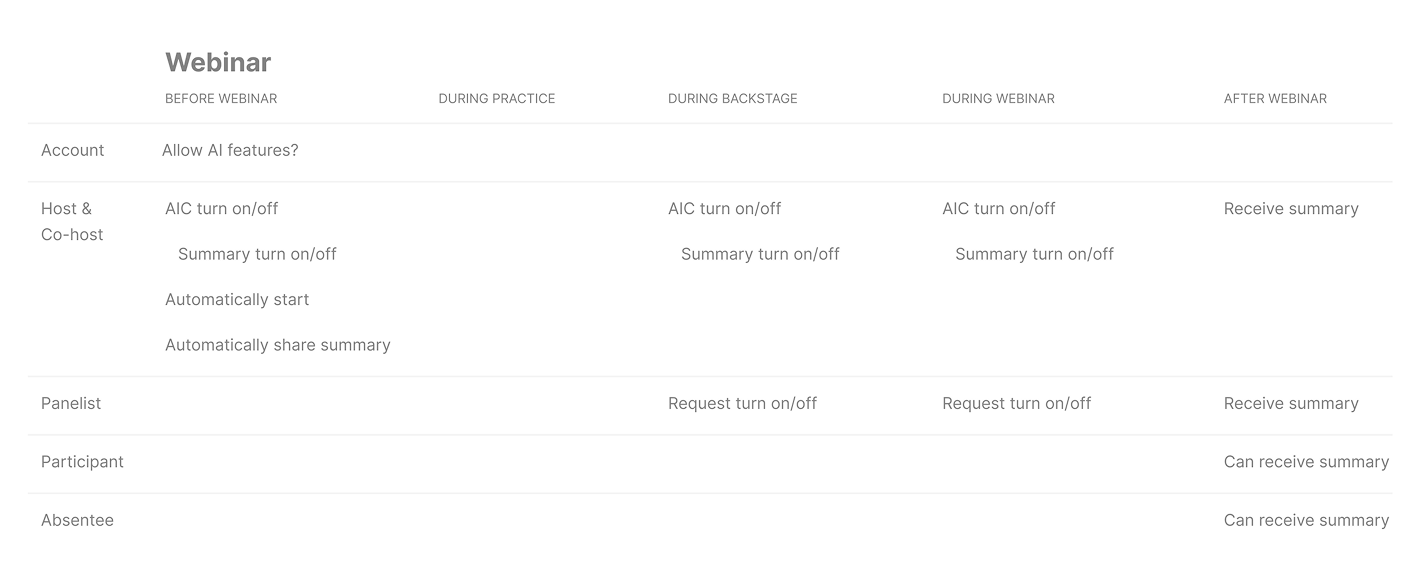
Design flow changes
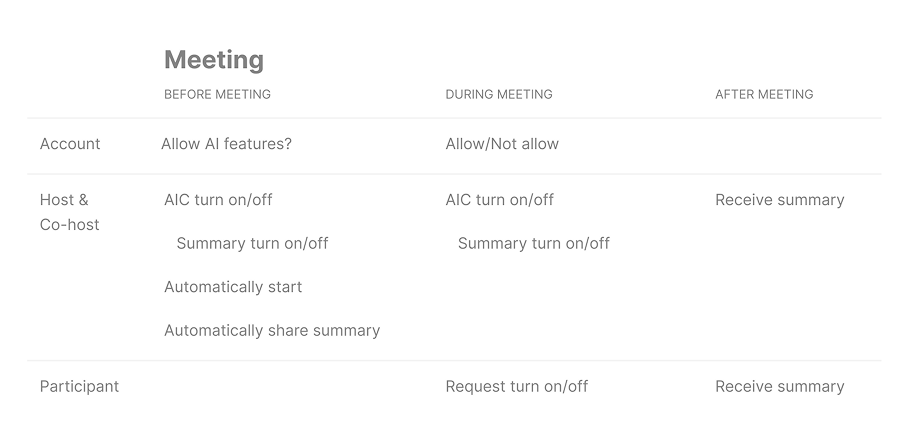
- Meetings allowed participants to request AI access during the meeting. Webinars would not allow requests due to the size and disturbance to the host of the webinar
- Need design flows during practice room, backstage and webinar
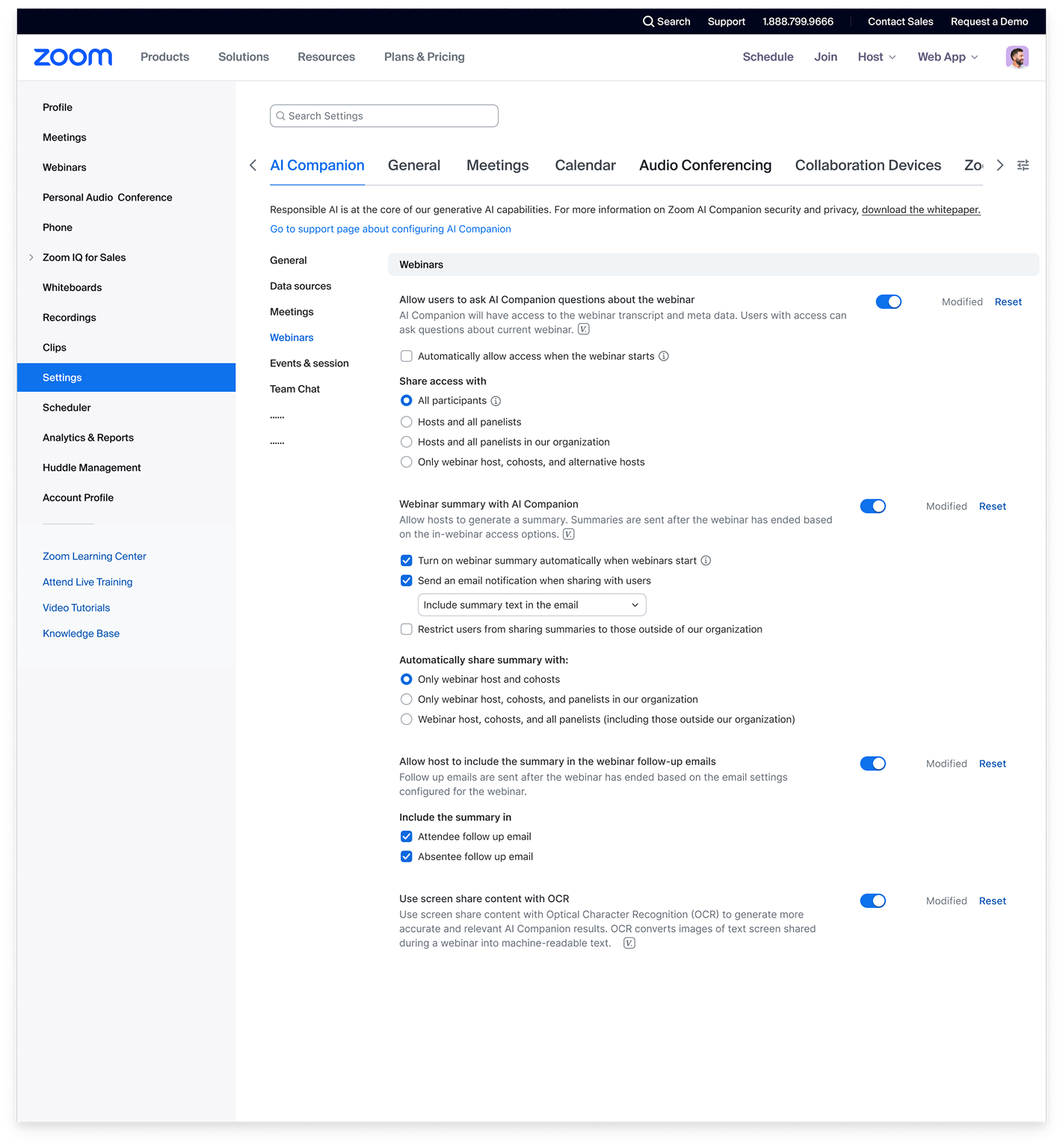
- Provide AI settings for webinar specific roles
- Provide webinar summary in a follow up email for webinars
User personas
For this case, the user personas are more based on the role they take per webinar.
An account admin manages the organization’s account at a company-wide level, overseeing settings, and access across all users. They define and assign permissions, controlling what individuals or groups can view, access, or modify within the account In this case, the account admin can choose to turn off access to all AI features within the company account.
The host’s role is to create the meeting or webinar. At this level they can also choose to turn on/off AI features. During a meeting they can also receive requests to turn on/off the features.
A panelist in a webinar is an attendee who has camera and speaking privileges. They can also be admitted to backstage and practice rooms. During a webinar, the host can promote an attendee to be a panelist so that they can speak during the on-going webinar. This use case is the solution for Q&A sessions that may occur.
For AI features, the host can choose to automatically share AI summaries to hosts, co-hosts, and panelists. This variable needs to be noted when the attendee has been promoted to a panelist.
An attendee is the general audience within a meeting or webinar. For webinars, they do not have mic or camera privileges unless they have been promoted by the host. However, they are able to provide reactions, chat, or ask questions during Q&A sessions.
An absentee is someone who accepted the invite to the webinar but did not attend. This role is crucial for webinar hosts who want send emails to those who missed the event. Hosts can choose to share Webinar summaries to this role.
Technical considerations
The ability to ask questions in AI Companion during a webinar is based on the transcript generated in real time, as well as support from internet sources. Transcript generation is similar to recording a meeting and due to privacy issues, required clear indicators of when it was on versus off. If off, then the transcript could not be generated, therefore AIC would be unable to answer questions during the “off phase”. However, if on, then AIC could generate answers during the webinar such as: can you explain what the topic is about?
Other design considerations
Due to the complexity of when the AI features are available, there were many considerations for the host’s user journey
One of the key questions throughout the design phase was: how do users discover the AI features? If the account admin turns off visibility of all AI features, then no product solutions were introduced. However if visibility was on, then...
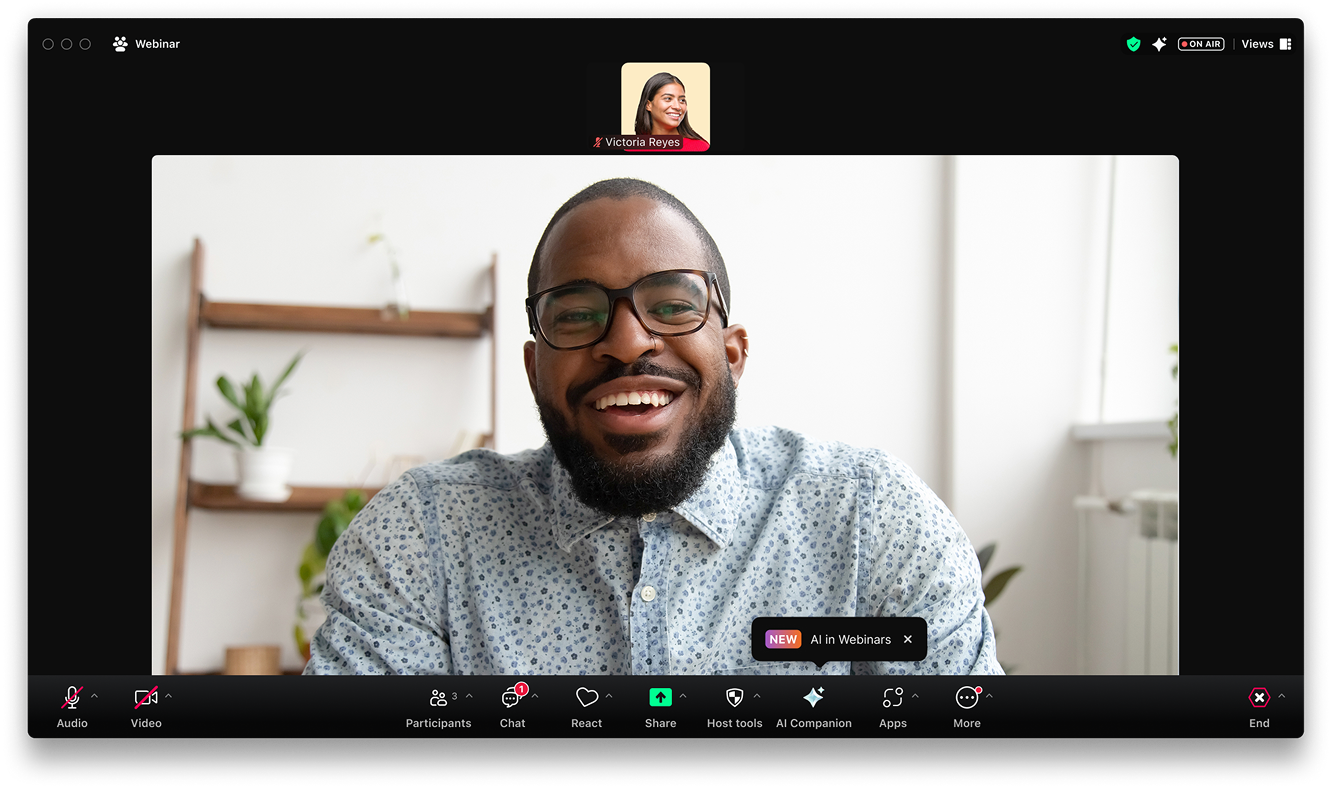
- A pop-up introducing the feature (this pop-up had to be managed and prioritized against any other pop-ups)
- A badge on the menu providing more visibility to the new AI feature
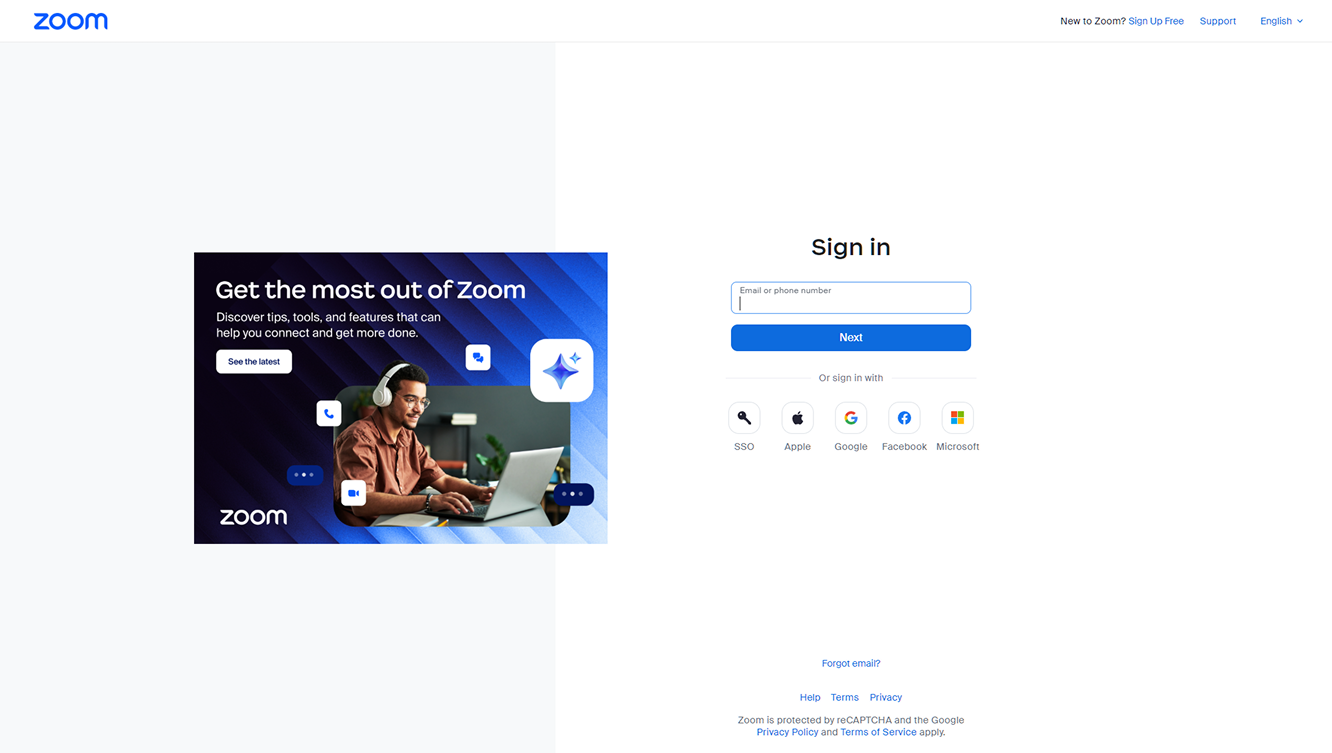
- More feature awareness with banners on the login page (example shown below is based on my strategic direction, but not my designs)
AI Companion is Zoom’s AI featured large language model. This allows users to ask questions and generate summaries. This feature must be turned on in order to generate a summary. Therefore a settings hierarchy was required to understand when a feature was available:
When AIC is on:
- Summary can be generated
- Participants can ask AIC questions during the webinar
When AIC is off:
- No summary can be generated
- Participants do not have access to AIC questions
- Participants can request access to AIC (not available during a webinar due to potential distraction to the host)
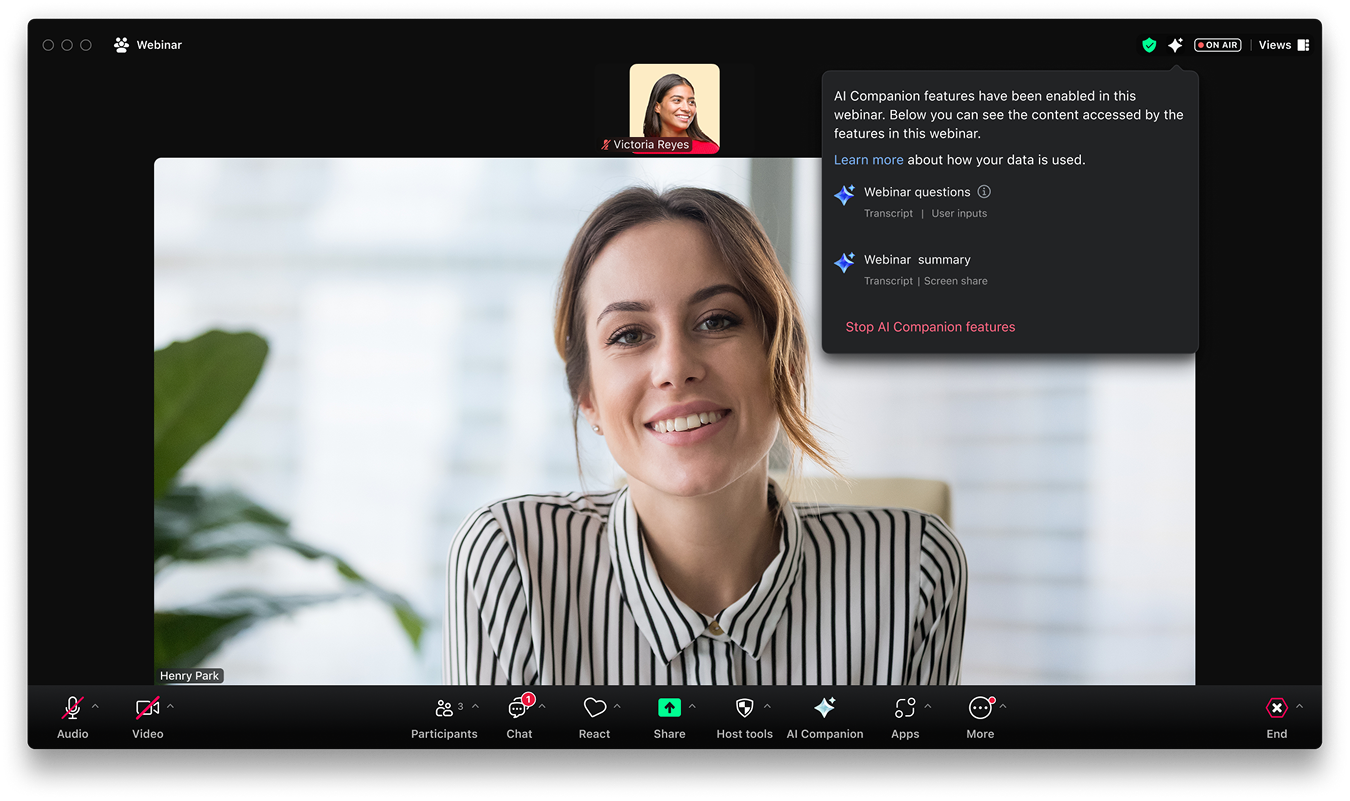
For AI features, this means transparency on when and how AI features are being utilized. If there is content within the webinar that the host prefers to not share out, they can pause AI features or edit the summary copy before sharing it.
- Any conversations backstage or practice mode would not be accessible for AI
- AI icon (subtle) blinking animation to indicate “on”
- AI features would not be accessible until the host “starts” the webinar
- Summaries can be reviewed before sharing
Solutions
Pre-webinar (host), during webinar, and post webinar experiences
Outcome
With AI in webinars, attendees can now enjoy an engaging, self-guided experience, staying oriented in real time, resulting in higher comprehension, sustained attention, and more inclusive participation at scale.